Articles by "2nd Hand Printer"

Updating your printer drivers can help resolve many issues and improve performance. Here are the steps to update your printer drivers:


### Using Windows Update

1. **Open Settings**: Go to **Start** > **Settings** > **Update & Security** > **Windows Update**.

2. **Check for Updates**: Click on **Check for updates**. If there are any updates available for your printer, Windows will download and install them automatically.

How do I update my printer drivers? techhighBD 


### Using Device Manager

1. **Open Device Manager**: Press **Win + X** and select **Device Manager**.

2. **Find Your Printer**: Expand the **Printers** section, right-click on your printer, and select **Update driver**.

3. **Search Automatically**: Choose **Search automatically for updated driver software**. Windows will search for the latest driver and install it.


### From the Manufacturer's Website

1. **Visit the Website**: Go to your printer manufacturer's support website (e.g., HP, Epson, Canon).

2. **Find Your Model**: Enter your printer model number and look for the latest driver.

3. **Download and Install**: Download the driver and follow the installation instructions provided on the website.


### Using Printer Software

1. **Install Software**: If your printer came with a software disc, install it. This software often includes tools to update drivers.

2. **Check for Updates**: Use the software to check for and install any available driver updates.


### Reinstalling the Printer

1. **Remove Printer**: Go to **Settings** > **Devices** > **Printers & scanners**. Select your printer and click **Remove device**.

2. **Add Printer**: Click **Add a printer or scanner** and follow the prompts to reinstall your printer. Windows will download and install the latest drivers.


These steps should help you keep your printer drivers up to date¹²³. If you encounter any issues, feel free to ask for more specific guidance!


¹: [Microsoft Support - How to download and install the latest printer drivers](https://support.microsoft.com/en-us/windows/how-to-download-and-install-the-latest-printer-drivers)

²: [Microsoft Support - Download printer drivers in Windows](https://support.microsoft.com/en-us/windows/download-printer-drivers-in-windows)

³: [HP Support - Official HP® Printer Drivers and Software Download](https://support.hp.com/us-en/drivers/printers)

More printer information ℹ️ 👇

More printer information ℹ️👇

Facebook: techhighBD 
https://web.facebook.com/techhighbd
📷YouTube: techhighBD 
Web: techhighBD 

(1) Update drivers in Windows 10. https://bing.com/search?q=update+printer+drivers.

(2) How to download and install the latest printer drivers. https://support.microsoft.com/en-us/windows/how-to-download-and-install-the-latest-printer-drivers.

(3) Download printer drivers in Windows - Microsoft Support. https://support.microsoft.com/en-us/windows/download-printer-drivers-in-windows

(4) Official HP® Printer Drivers and Software Download | HP® Support. https://support.hp.com/us-en/drivers/printers.

 The Epson EcoTank ET-15000 is a highly adaptable and budget-friendly all-in-one printer, perfect for home or small office environments. Here are the main details:


**Key Features:**

Epson EcoTank ET-15000 features.

- **Cartridge-Free Printing:** Utilizes large ink tanks that are simple to refill, minimizing the need for frequent cartridge changes.

- **Cost Savings:** Save up to 90% on ink costs with affordable replacement bottles. Each bottle set is roughly equivalent to 80 individual cartridges.

- **High Capacity:** Print up to 7,500 pages in black and 6,000 pages in color with one set of ink bottles.

- **Versatile Paper Handling:** Prints up to 13" x 19" via the rear feed and scans up to 8.5" x 14" with the ADF.

- **High Productivity:** Includes automatic duplex printing, a 250-sheet front tray, and a 2.7" color touchscreen.

- **Wireless and Voice-Activated:** Print easily from smart devices using the Epson Smart Panel app and enjoy hands-free printing through voice commands.

Epson EcoTank ET-15000 wireless printing.

**Specifications:**

- **Printer Type:** Inkjet

- **Connectivity:** USB, WiFi, Ethernet

- **Duplex Printing:** Yes

- **Print Speed:** Up to 17 pages per minute (black) and 9 pages per minute (color)

- **Resolution:** Up to 4800 x 1200 dpi

Epson EcoTank ET-15000 wireless printing


**Pros:**

- **Low Running Costs:** High-yield ink bottles significantly lower long-term printing expenses.

- **Eco-Friendly:** Reduces waste by eliminating the need for traditional cartridges.

- **High-Quality Prints:** Delivers sharp and vibrant prints for various applications.


**Cons:**

- **High Initial Cost:** The upfront investment is higher compared to standard printers.

- **Size and Weight:** Larger and heavier than some other home printers.


**Box Contents:**

- Printer unit

- Full set of ink (Black 127ml, Cyan/Magenta/Yellow 70ml each)

- Power cable

- Setup guide

- Software CD


Would you like information on where to buy it or details about specific features?


Epson l3118 Red Light Blinking Solved with Epson Resetter: A Comprehensive Guide

EPSON L3118 Printer

Modern printers like the Epson l3118 are fantastic devices until technical issues disrupt their functionality. The common red light blinking problem can halt operations, causing frustration. Fear not! In this guide, we delve into resolving the Epson l3118 red light blinking issue with the aid of an Epson resetter. Here, you'll find expert insights, solutions, and a detailed troubleshooting approach to rectify this inconvenience swiftly.**Printing errors resolved**


The Problem: Epson l3118 Red Light Blinking

What Causes the Red Light Blinking on Epson l3118 Printers?

The Epson l3118 red light blinking issue occurs due to various reasons such as paper jams, connection problems, or ink cartridge issues. Understanding these triggers is pivotal to resolving the problem effectively.**Epson adjustment techniques**

Troubleshooting the Issue

Resolving the Epson l3118 red light blinking problem entails a systematic approach. We'll explore the troubleshooting steps involving the Epson resetter, guiding you through each solution.**Printer maintenance tips**

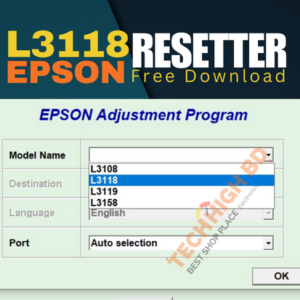
[caption id="attachment_749" align="alignnone" width="300"]Epson l3118 adjustment program download techhighBD Epson l3118 adjustment program download techhighBD[/caption]
  1. Paper Jam Solutions Is your printer frequently encountering paper jams, leading to the red light blinking issue? Discover techniques to clear paper jams efficiently.**Epson L3118 problems solved**
  2. Connection Check-Up Ensure your printer is connected properly. Faulty connections can often be the root cause of the blinking red light.**Red light blinking fix** Learn how to check and establish a stable connection.
  3. Dealing with Ink Cartridge Problems Sometimes, the red light issue stems from ink cartridge-related troubles. Get insights on handling and rectifying these problems effectively.**Printer error resolution**

Epson l3118 Red Light Blinking Solved with Epson Resetter

Understanding the Epson Resetter

The Epson resetter is a handy tool that resets the printer's internal counters, resolving numerous technical glitches including the red light blinking problem. Let's delve into the steps of utilizing this solution:**Epson printer adjustments**

  1. Downloading and Installing the Epson Resetter Obtain the necessary software from trusted sources and follow a step-by-step installation guide.**DIY printer fixes**
  2. Running the Epson Resetter Learn how to use the resetter tool effectively to resolve the red light blinking issue on your Epson l3118 printer.**Epson L3118 troubleshooting**


Frequently Asked Questions (FAQs)

  • How often does the Epson l3118 red light blinking problem occur? The frequency of this issue can vary, but it commonly occurs due to minor technical disruptions in printing operations.**Printing hacks, expert advice**
  • Can I resolve the red light blinking issue without using an Epson resetter? While some basic problems like paper jams can be fixed manually, the resetter provides a comprehensive solution for various technical issues.**Printer error codes**
  • Is using an Epson resetter safe for the printer? When obtained from trusted sources and used as instructed, an Epson resetter is safe and effective in resolving technical glitches.**Epson L3118 support, help**
  • Are there any alternative methods to fix the red light blinking issue? Yes, some issues can be resolved through manual troubleshooting, but the Epson resetter remains a reliable and efficient solution for many problems.**Printer issue solutions**
  • How long does it take to resolve the red light blinking issue with an Epson resetter? Using the resetter is a swift process, typically taking a few minutes to reset the printer and rectify the blinking light issue.**Epson L3118 tutorial, tips**
  • Are there any precautions to consider while using the Epson resetter? Ensure you follow the instructions precisely and obtain the software from reputable sources to avoid any risks to your printer. **Epson printer troubleshooting**

Epson l3118 Printer Maintenance Tips

A. Brief overview of the Epson l3118 printer B. Importance of regular maintenance for optimal printer performance**Printer error messages**

II. Cleaning Your Epson l3118 Printer Regularly

A. Step-by-step guide to cleaning the exterior of the printer B. Cleaning the interior components for dust and debris C. Proper maintenance of print head and cartridges specific to the Epson l3118 model.**Troubleshooting guide, tips**

III. Using Genuine Ink Cartridges and Supplies

A. Importance of using authentic Epson ink cartridges and toners B. Risks associated with using counterfeit supplies C. Benefits of genuine ink for the Epson l3118 printer's longevity**Epson adjustment methods**

IV. Updating Epson l3118 Printer Software and Drivers

A. Understanding the importance of software updates for this specific model B. Step-by-step guide to updating software and drivers C. Advantages of updated software for enhanced performance and compatibility **Printer problem troubleshooting**

V. Proper Paper Handling Techniques for Epson l3118

A. Selecting appropriate paper types compatible with the printer B. Storing paper correctly to prevent paper jams and damage C. Loading paper accurately into the Epson l3118 printer tray **Epson L3118 setup, configuration**

VI. Avoiding Overuse and Power Cycling Recommendations

A. Preventing overuse to maintain the Epson l3118 printer's health B. Benefits of power cycling and its impact on printer performance C. Recommendations for optimal usage frequency specific to the Epson l3118 model **Fixing red light blinking**

VII. Establishing a Routine Maintenance Schedule for Epson l3118

A. Creating a maintenance calendar tailored to Epson l3118 checks B. Suggested intervals for various maintenance tasks specific to this model C. Emphasizing the importance of regular Epson l3118 printer maintenance **Printer issue diagnostics**

VIII. Troubleshooting Common Epson l3118 Printer Issues

A. Identifying typical issues specific to the Epson l3118 model B. Troubleshooting steps for problems like paper jams, smudges, etc. C. Seeking professional assistance when required for Epson l3118 printer concerns **Epson printer maintenance**

More Epson resetter information

Whatsapp: +8801797464478

Live Chat: FACEBOOK

👇 
Download 

Epson l3118 adjustment program

Conclusively, the Epson l3118 red light blinking issue need not impede your printing tasks. Armed with the right knowledge and tools like the Epson resetter, you can swiftly troubleshoot and resolve these technical inconveniences. **Epson L3118 fix, adjustment guide** Implement the solutions provided herein to enjoy uninterrupted printing experiences with your Epson l3118 printer. Red light blinking solutions

#EpsonL3118
#RedLightBlinking
#AdjustmentGuide
#PrinterTroubleshooting
#PrinterProblemsSolved
#TechTips
#PrintingSolutions
#DIYFixes
#ExpertAdvice
#PrintingHacks

 Here are some general steps you might follow if you encounter a red light blinking error on an Epson L8050 printer

Power Cycle the Printer: Turn off the printer, unplug it from the power source, and wait a few minutes before plugging it back in and turning it on again. Sometimes, this simple step can resolve minor issues.

Clean the Printer: Use the printer's cleaning utility to clean the print head and other components.

Reset the Printer: Some Epson printers have a reset button or sequence that can be used to reset the printer to its factory settings.

Use Epson Adjustment Program: If the above steps do not resolve the issue, you may consider using an Epson adjustment program. These programs are typically not freely available and may require you to purchase a license or obtain it from an authorized service provider.

When using an adjustment program, follow the instructions carefully and make sure to select the correct model of your printer. The program may offer options to reset various error counters or perform other maintenance tasks that can clear the red light blinking error.


If you're unable to resolve the issue on your own, it's recommended to contact Epson customer support or seek assistance from a certified Epson service center to avoid causing further damage to your printer.
Here are some general steps to find and download Epson resetter software:

Visit the official Epson website: Epson provides support and downloads for their products on their official website. You can try searching for the resetter software for your specific printer model on the Epson support page.

Check reputable third-party websites: There are some reputable websites that host printer resetter software for various printer models, including Epson. Make sure to verify the credibility of the website before downloading any software.

Consider contacting Epson support: If you're unable to find the resetter software online, you can contact Epson customer support for assistance. They may provide you with the necessary software or guide you on how to obtain it.

Be cautious: When downloading resetter software from the internet, be cautious of websites that may distribute pirated or malicious software. Make sure to download from trusted sources to avoid potential security risks.


Remember that using resetter software may void your printer's warranty and could potentially cause further issues if not used correctly. It's recommended to use such software only if you are familiar with the process and understand the risks involved. If you're unsure, consider seeking assistance from a certified Epson service center..
Resetting an Epson printer often refers to restoring it to its factory settings or clearing error codes. Here are general steps you can take to reset an Epson printer:

Power off the Printer: Ensure the printer is turned off properly.

Disconnect Power: Unplug the printer from the power source.


Press and Hold Buttons: Some Epson printers have a combination of buttons that you can press and hold while turning on the printer to initiate a reset. This combination varies depending on the printer model. Commonly used buttons include the "Stop," "Maintenance," or "Paper" buttons. Consult your printer's manual or Epson's support documentation for the specific button combination for your printer model.

Perform a Factory Reset: If your printer has a control panel or LCD screen, you may find a "Factory Reset" option within the settings menu. Navigate to this option using the arrow keys and select it to reset the printer to its factory defaults.

Use Epson Adjustment Program: As mentioned earlier, Epson provides adjustment programs for some printer models. These programs can be used to reset certain error codes and counters. If other methods fail, you might consider using an Epson adjustment program. However, be aware that these programs are typically not freely available and may require you to purchase a license or obtain it from an authorized service provider.Remember to proceed with caution when resetting your printer, as it may result in loss of settings or data. Additionally, resetting your printer may void its warranty, so it's essential to weigh the risks before proceeding. If your printer is still under warranty, consider seeking assistance from an authorized Epson service center


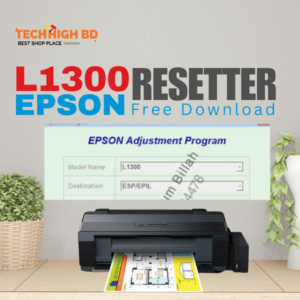
Epson L1300 resetter dawnload

  1. Introduction to Epson L1300 Printer Reset
  2. Understanding the Need for Resetting the Epson L1300 Printer
  3. Methods to Reset Epson L1300 Printer
    • Using the Epson Adjustment Program
    • Manual Resetting Techniques
    • Utilizing the Control Panel
  4. Step-by-Step Guide for Using the Epson Adjustment Program


    • Downloading and Installing the Program
    • Executing the Reset Process
  5. Manual Resetting Techniques for Epson L1300
    • Resetting Using Buttons
    • Utilizing the Power Cycling Method
  6. Utilizing the Control Panel to Reset Epson L1300
  7. Precautions to Consider Before Resetting
  8. Conclusion
  9. How to Epson L1300 Printer Reset

    Introduction to Epson L1300 Printer Reset

    The Epson L1300 printer, known for its high-quality printing capabilities, occasionally encounters issues that necessitate a reset. Understanding how to effectively reset the printer can resolve various performance issues.

    Understanding the Need for Resetting the Epson L1300 Printer

    Resetting the Epson L1300 printer becomes necessary when encountering errors like ink pad issues, paper jamming, or when the printer fails to respond to commands.

    Methods to Reset Epson L1300 Printer

    **Epson L1300 resetter dawnload**
    **Epson L1300 resetter dawnload**

    Various methods exist to reset the Epson L1300 printer, offering users flexibility in resolving printer-related problems.

  10. Using the Epson Adjustment Program

  11. The Epson Adjustment Program is a utility tool designed specifically for resetting various components of Epson printers, including the L1300 model.

Manual Resetting Techniques for Epson L1300
Users can employ manual methods involving specific buttons or power cycling to reset the printer without the need for additional software. **Epson L1300 resetter dawnload**

 More information techhighBD 


Utilizing the Control Panel to Reset Epson L1300
Some printer functions can be accessed and reset directly through the control panel interface of the Epson L1300.

Step-by-Step Guide for Using the Epson Adjustment Program
Downloading and Installing the Program
Start by downloading the Epson Adjustment Program from a reliable source. Follow the installation instructions carefully to set up the program on your system. **Epson L1300 resetter dawnload**
Executing the Reset Process
Open the Adjustment Program and follow the provided instructions to initiate the reset process for the Epson L1300 printer. EPSON l3110 resetter dawnload

Manual Resetting Techniques for Epson L1300
Resetting Using Buttons
Certain button combinations or sequences can be used to initiate a reset on the Epson L1300 printer, typically outlined in the printer’s manual. **Epson L1300 resetter dawnload**

Utilizing the Power Cycling Method
Power cycling the printer by turning it off and unplugging it for a few minutes before restarting can also serve as a manual reset method.

Utilizing the Control Panel to Reset Epson L1300
Access the printer’s control panel settings and navigate to the reset options to initiate the process directly through the interface.

Epson L1300 Resetter Free Dawnload techhighBD
Precautions to Consider Before Resetting
Before performing a reset, ensure that all necessary precautions are taken, such as backing up important documents and following specific instructions to avoid any mishaps. **Epson L1300 resetter dawnload**

Epson l3118 Red Light Blinking Solved with Epson Resetter: A Comprehensive Guide

EPSON L3118 Printer

Modern printers like the Epson l3118 are fantastic devices until technical issues disrupt their functionality. The common red light blinking problem can halt operations, causing frustration. Fear not! In this guide, we delve into resolving the Epson l3118 red light blinking issue with the aid of an Epson resetter. Here, you’ll find expert insights, solutions, and a detailed troubleshooting approach to rectify this inconvenience swiftly.**Printing errors resolved**


The Problem: Epson l3118 Red Light Blinking

What Causes the Red Light Blinking on Epson l3118 Printers?

The Epson l3118 red light blinking issue occurs due to various reasons such as paper jams, connection problems, or ink cartridge issues. Understanding these triggers is pivotal to resolving the problem effectively.**Epson adjustment techniques**

Troubleshooting the Issue

Resolving the Epson l3118 red light blinking problem entails a systematic approach. We’ll explore the troubleshooting steps involving the Epson resetter, guiding you through each solution.**Printer maintenance tips**

Epson l3118 adjustment program download techhighBD
  1. Paper Jam Solutions Is your printer frequently encountering paper jams, leading to the red light blinking issue? Discover techniques to clear paper jams efficiently.**Epson L3118 problems solved**
  2. Connection Check-Up Ensure your printer is connected properly. Faulty connections can often be the root cause of the blinking red light.**Red light blinking fix** Learn how to check and establish a stable connection.
  3. Dealing with Ink Cartridge Problems Sometimes, the red light issue stems from ink cartridge-related troubles. Get insights on handling and rectifying these problems effectively.**Printer error resolution**

Epson l3118 Red Light Blinking Solved with Epson Resetter

Understanding the Epson Resetter

The Epson resetter is a handy tool that resets the printer’s internal counters, resolving numerous technical glitches including the red light blinking problem. Let’s delve into the steps of utilizing this solution:**Epson printer adjustments**

  1. Downloading and Installing the Epson Resetter Obtain the necessary software from trusted sources and follow a step-by-step installation guide.**DIY printer fixes**
  2. Running the Epson Resetter Learn how to use the resetter tool effectively to resolve the red light blinking issue on your Epson l3118 printer.**Epson L3118 troubleshooting**


III. Using Genuine Ink Cartridges and Supplies

A. Importance of using authentic Epson ink cartridges and toners B. Risks associated with using counterfeit supplies C. Benefits of genuine ink for the Epson l3118 printer’s longevity**Epson adjustment methods**

IV. Updating Epson l3118 Printer Software and Drivers

A. Understanding the importance of software updates for this specific model B. Step-by-step guide to updating software and drivers C. Advantages of updated software for enhanced performance and compatibility **Printer problem troubleshooting**

V. Proper Paper Handling Techniques for Epson l3118

A. Selecting appropriate paper types compatible with the printer B. Storing paper correctly to prevent paper jams and damage C. Loading paper accurately into the Epson l3118 printer tray **Epson L3118 setup, configuration**


EPSON L360 2nd Hand Useable
Brand: Epson

Model: Epson L360

Used: Used in 6 Month, All print information,
       
             Total Page 1,200

Guality: Color Print and free Scaner with Printer.

               A4, Letter etc Paper Size Adjust in Printer.

Prize: 12,000

Call: 01757440498


MKRdezign

Contact Form

Name

Email *

Message *

Powered by Blogger.
Please WaitPlease Enable Javascript To See All Widget